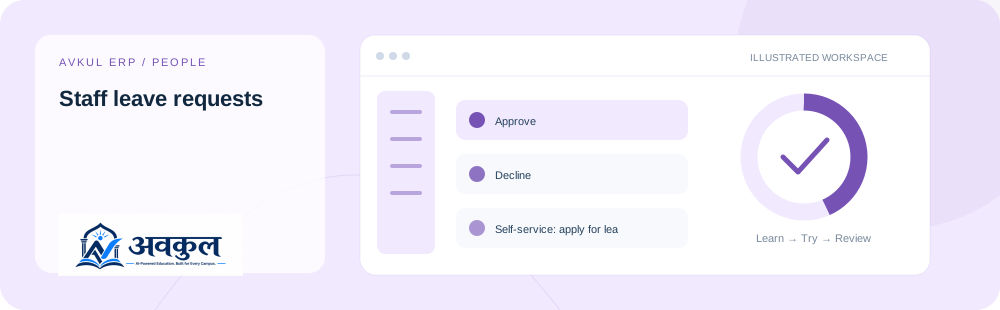
Self-service: apply for leave (resolves the caller's own staff profile)
04
Self-service: my own leave history
05
Admin: pending leave requests awaiting a decision
06
Admin: approve or reject a leave request
BEFORE YOU BEGIN
Access & setup
Intended access: Assigned account with the required permissions.
A school account with the permissions shown below.
Choose the relevant school, academic session or child before working.
Required permission keys
hr:viewhr:update
Use the public sample demo to learn this flow. Your assigned ERP account determines access to actual school records.
STEP BY STEP
How the workflow works
01
Choose staff leave or student absence reporting
A school account with the permissions shown below.
02
Enter the applicable dates and reason
Decline is part of the documented workflow.
03
Submit or review through the permitted role
Self-service: apply for leave (resolves the caller's own staff profile) is part of the documented workflow.
04
Check the final decision and attendance impact
Review the result in the connected record or workspace before moving on.
Fields & controls
The screen exposes the following context or input controls. Required fields are validated by the live application.
Book the suggested stand-ins, not just plan them
CURRENT BEHAVIOUR
Rules & current limits
Staff and student approval rules differ. The family view resolves linked-child ownership.
Source inventory checked on 11 October 2026. Guide availability confirms documentation publication, not certification of every external service or device flow.
LEARN BY DOING
Try staff leave requests
Open a guided sample workspace, try the available actions, then reset whenever you like. No login required.