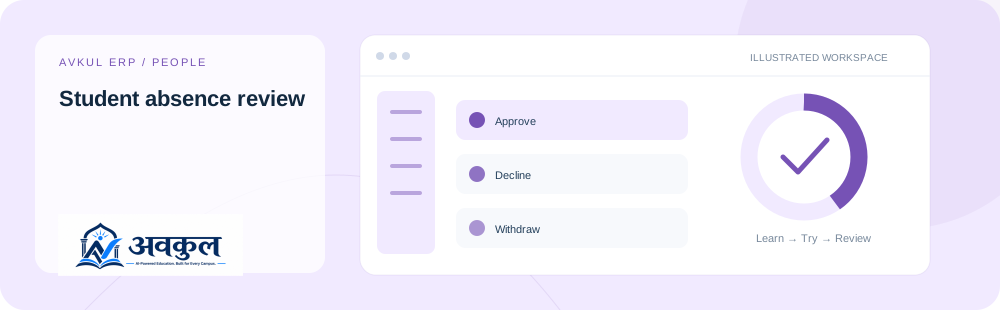
Intended access: Assigned account with the required permissions.
A school account with the permissions shown below.
Choose the relevant school, academic session or child before working.
Required permission keys
attendance:viewattendance:manage
Use the public sample demo to learn this flow. Your assigned ERP account determines access to actual school records.
STEP BY STEP
How the workflow works
01
Choose staff leave or student absence reporting
A school account with the permissions shown below.
02
Enter the applicable dates and reason
Decline is part of the documented workflow.
03
Submit or review through the permitted role
Withdraw is part of the documented workflow.
04
Check the final decision and attendance impact
Review the result in the connected record or workspace before moving on.
Request fields to understand
Source-declared fields used by related operations; each operation has its own validation and scope.
Field
Declared type
Input
studentId
string
Required by declaration
fromDate
string
Required by declaration
toDate
string
Optional
reason
string
Optional
leaveType
string
Optional
attachmentUrl
string
Optional
approve
boolean
Required by declaration
CURRENT BEHAVIOUR
Rules & current limits
Staff and student approval rules differ. The family view resolves linked-child ownership.
Source inventory checked on 11 October 2026. Guide availability confirms documentation publication, not certification of every external service or device flow.
LEARN BY DOING
Try student absence review
Open a guided sample workspace, try the available actions, then reset whenever you like. No login required.