
Applicant self-service portal
Use a privately issued application link to save a draft, upload documents and request a campus visit.
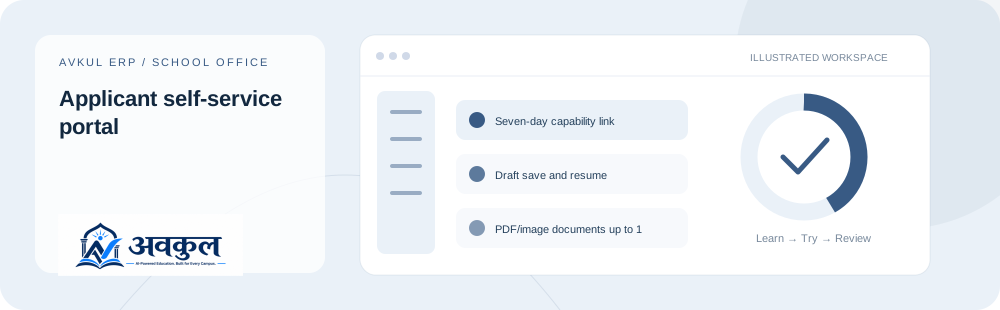
What you can do
Seven-day capability link
Draft save and resume
PDF/image documents up to 10 MB
Review feedback and resubmission
Visit preferences
Application submission
Access & setup
Intended access: Assigned account with the required permissions.
- Use the official link and the applicable access context.
Use the public sample demo to learn this flow. Your assigned ERP account determines access to actual school records.
How the workflow works
- 01
Open the private link issued by the school
Use the official link and the applicable access context.
- 02
Save guardian/application details and supported documents
Draft save and resume is part of the documented workflow.
- 03
Review feedback and resubmit a rejected document if needed
PDF/image documents up to 10 MB is part of the documented workflow.
- 04
Submit when the required documents are received
Review the result in the connected record or workspace before moving on.
Fields & controls
The screen exposes the following context or input controls. Required fields are validated by the live application.
- Application details
- Guardian details
- Required documents
- Visit preferences
Rules & current limits
- A bare portal URL requires the private application link; this documentation does not publish capability tokens.
- Uploads are reviewed by staff. OCR, malware scanning and gateway collection are not included in this release.
Implementation checked against the delivered release guide. Guide availability confirms documentation publication, not certification of every external service or device flow.
Try applicant self-service portal
Open a guided sample workspace, try the available actions, then reset whenever you like. No login required.
Open the actual application
ERP links use your assigned account. Record-specific pages start from the list so you can choose a real record.