
Parent account invitation
Accept the school’s private post-admission invitation and choose a parent account password.
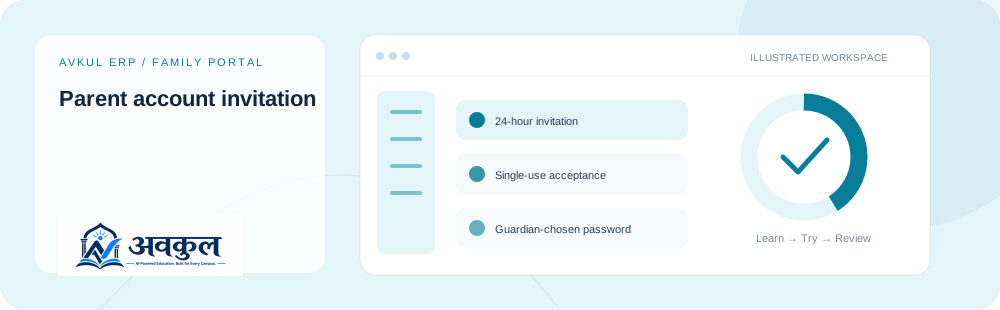
What you can do
24-hour invitation
Single-use acceptance
Guardian-chosen password
Parent-only account
Access & setup
Intended access: Assigned account with the required permissions.
- Use the official link and the applicable access context.
Use the public sample demo to learn this flow. Your assigned ERP account determines access to actual school records.
How the workflow works
- 01
Open the private invitation from the school after admission
Use the official link and the applicable access context.
- 02
Choose and confirm the required password
Single-use acceptance is part of the documented workflow.
- 03
Accept the invitation once
Guardian-chosen password is part of the documented workflow.
- 04
Sign in with the assigned guardian identifier and school code
Review the result in the connected record or workspace before moving on.
Fields & controls
The screen exposes the following context or input controls. Required fields are validated by the live application.
- Password
- Password confirmation
Rules & current limits
- Existing accounts are not reset through invitations.
- Invitations are not automatically delivered by SMS/email and are never included in public documentation.
Implementation checked against the delivered release guide. Guide availability confirms documentation publication, not certification of every external service or device flow.
Try parent account invitation
Open a guided sample workspace, try the available actions, then reset whenever you like. No login required.
Open the actual application
ERP links use your assigned account. Record-specific pages start from the list so you can choose a real record.